ExpressVPN
    • No-Logs Policy
    • Servers in 113 Countries
    • Use on Multiple Devices
    • High-Speed VPN
    • Access Online Services Securely
    • VPN for Gaming
    • Explore All Features
    • About ExpressVPN
    Sign Up For Expressvpn

    One subscription gives you access to a fast-growing suite of privacy and security tools that work seamlessly together to improve your digital life.

    View all products
    • Lightway VPN Protocol
    • Internet Kill Switch
    • Split Tunneling
    • Private, Encrypted DNS
    • Avoid ISP Throttling
    • Threat Manager
    • Ad Blocker
    • Parental Controls
    • Dedicated IP
  • Download VPN
    • Windows new
    • MacOS new
    • Linux new
    • iPhone / iPad
    • Android
    • Apple TV
    • Fire Stick
    • Android TV
    • VPN for Routers
    • Aircove Routers
    • Chrome
    • Firefox
    • Edge
  • Pricing
    • What Is a VPN?
    • VPN for Beginners
    • How To Use a VPN
    • VPN Encryption Explained
    • Blog
    • Glossary
    • IP Address Checker
    • DNS Leak Test
    • WebRTC Leak Test
    • Password Generator
    • Support Center
    • FAQ
    • Live Chat
    • VPN Setup Tutorials
    • Redemption Code
  • Icon10VPN for Teams
  • Products
    Icon11

    ExpressVPN for Teams Get fast, secure VPN protection for growing teams. Easy to deploy, simple to manage, built to scale.

    Img2
    • ExpressVPN

      ExpressVPN Industry-leading, ultra-fast VPN with secure servers in 113 countries.

    • ExpressMailGuard

      ExpressMailGuard Private email relay service to protect your inbox and identity.

    • ExpressKeys

      ExpressKeys Secure password management, multi-factor authentication, and more.

    • ExpressAI

      ExpressAI The first consumer AI powered by confidential computing for privacy-led intelligence.

    • Identity Defender

      Identity Defender Powerful suite of ID protection, monitoring, and data removal tools.

    • Fortify

      Fortify High-performance VPN router to secure every device on your network.

    Other products from the family behind ExpressVPN

    • holiday.com eSIM

      holiday.com eSIM Free eSIM across 150+ destinations.

    • Intego

      Intego Award-winning macOS antivirus, firewall, system tools, and more.

  • My Account
Get Started
ExpressVPN
    • No-Logs Policy
    • Servers in 113 Countries
    • Use on Multiple Devices
    • High-Speed VPN
    • Access Online Services Securely
    • VPN for Gaming
    • Explore All Features
    • About ExpressVPN
    Sign Up For Expressvpn

    One subscription gives you access to a fast-growing suite of privacy and security tools that work seamlessly together to improve your digital life.

    View all products
    • Lightway VPN Protocol
    • Internet Kill Switch
    • Split Tunneling
    • Private, Encrypted DNS
    • Avoid ISP Throttling
    • Threat Manager
    • Ad Blocker
    • Parental Controls
    • Dedicated IP
  • Download VPN
    • Windows new
    • MacOS new
    • Linux new
    • iPhone / iPad
    • Android
    • Apple TV
    • Fire Stick
    • Android TV
    • VPN for Routers
    • Aircove Routers
    • Chrome
    • Firefox
    • Edge
  • Pricing
    • What Is a VPN?
    • VPN for Beginners
    • How To Use a VPN
    • VPN Encryption Explained
    • Blog
    • Glossary
    • IP Address Checker
    • DNS Leak Test
    • WebRTC Leak Test
    • Password Generator
    • Support Center
    • FAQ
    • Live Chat
    • VPN Setup Tutorials
    • Redemption Code
  • VPN for Teams
  • Products
    • ExpressVPN

      ExpressVPN Industry-leading, ultra-fast VPN with secure servers in 113 countries.

    • ExpressMailGuard

      ExpressMailGuard Private email relay service to protect your inbox and identity.

    • ExpressKeys

      ExpressKeys Secure password management, multi-factor authentication, and more.

    • ExpressAI

      ExpressAI The first consumer AI powered by confidential computing for privacy-led intelligence.

    • Identity Defender

      Identity Defender Powerful suite of ID protection, monitoring, and data removal tools.

    • Fortify

      Fortify High-performance VPN router to secure every device on your network.

    Other products from the family behind ExpressVPN

    • holiday.com eSIM

      holiday.com eSIM Free eSIM across 150+ destinations.

    • Intego

      Intego Award-winning macOS antivirus, firewall, system tools, and more.

    Icon11

    ExpressVPN for Teams Get fast, secure VPN protection for growing teams. Easy to deploy, simple to manage, built to scale.

    Img2
  • My Account
Get Started
Home Home » How to purchase ExpressKeys via in-app subscription

Manage Your Account

How to purchase ExpressKeys via in-app subscription

Last updated: October 15, 2026

Share in FacebookShare in TwitterShare in WhatsappShare in TelegramShare by email

When you subscribe to ExpressKeys directly within the macOS, iOS, or Android app, you’ll get access to a standalone ExpressKeys plan. You can choose between a 1-month and 1-year subscription, and a free trial is available for new users.

This subscription is managed through your app store account: either the Apple App Store on iOS and macOS or Google Play on Android. Note that subscriptions purchased through the Apple App Store or Google Play are not covered by the ExpressVPN 30-day money-back guarantee. Refunds are issued solely at the discretion of Apple Support or Google Play Support.

For full details on subscription terms, payment, and refunds, refer to our dedicated articles for Apple in-app purchases and Google Play subscriptions.

Note: You can also get ExpressKeys bundled with the Advanced and Express Pro subscriptions via the ExpressVPN website. This way, in addition to ExpressKeys, you’ll get access to ExpressVPN, Identity Defender (U.S. users only), ExpressMailGuard, holiday.com eSIM, and ExpressAI (Express Pro plans only).

Jump to…

Purchase an ExpressKeys subscription in the iOS or Android app
Purchase an ExpressKeys subscription in the macOS app
Set up your ExpressVPN account (Android, iOS, and macOS)
How to restore your existing ExpressKeys subscription

Purchase an ExpressKeys subscription in the iOS or Android app

  1. Download and install the ExpressKeys app from the App Store on iOS or Google Play on Android.
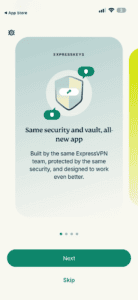
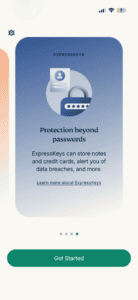
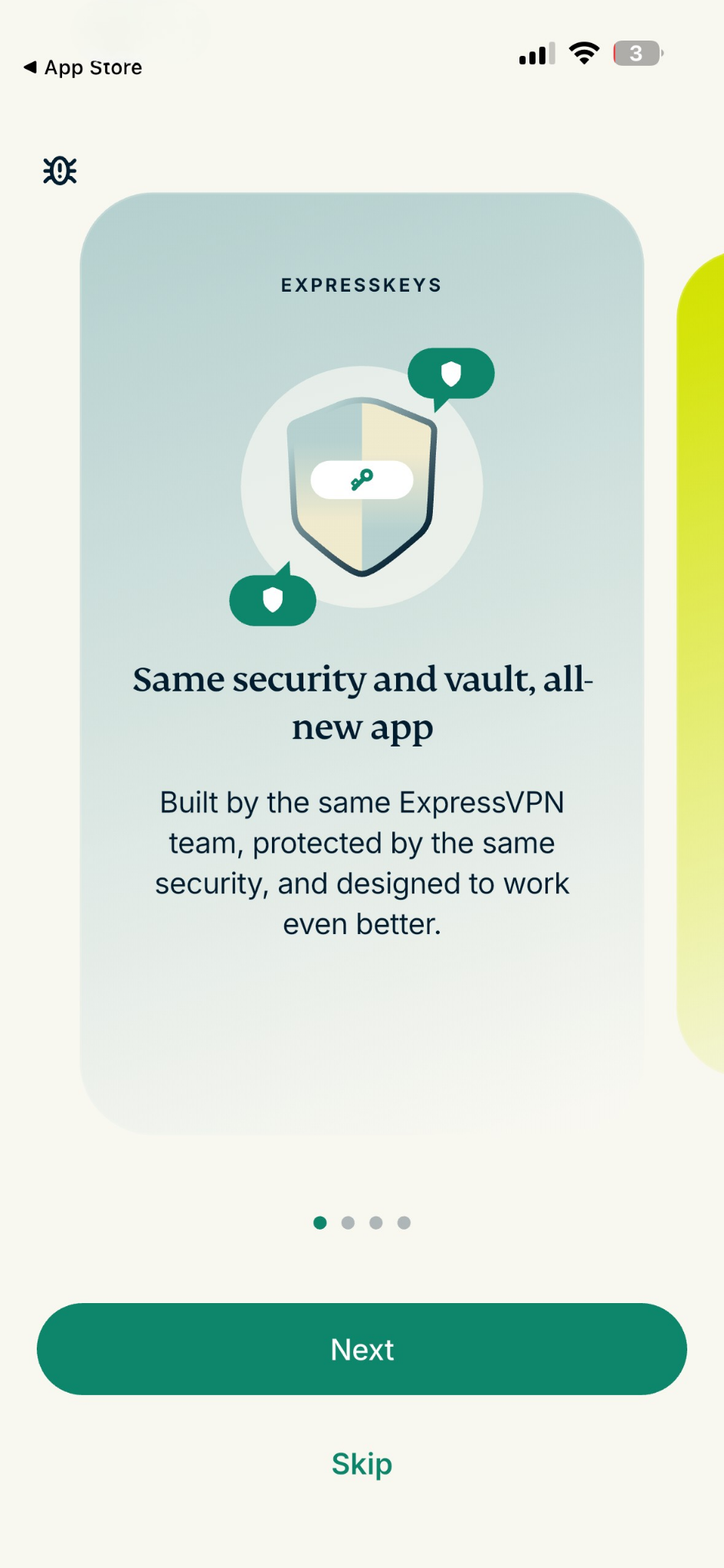
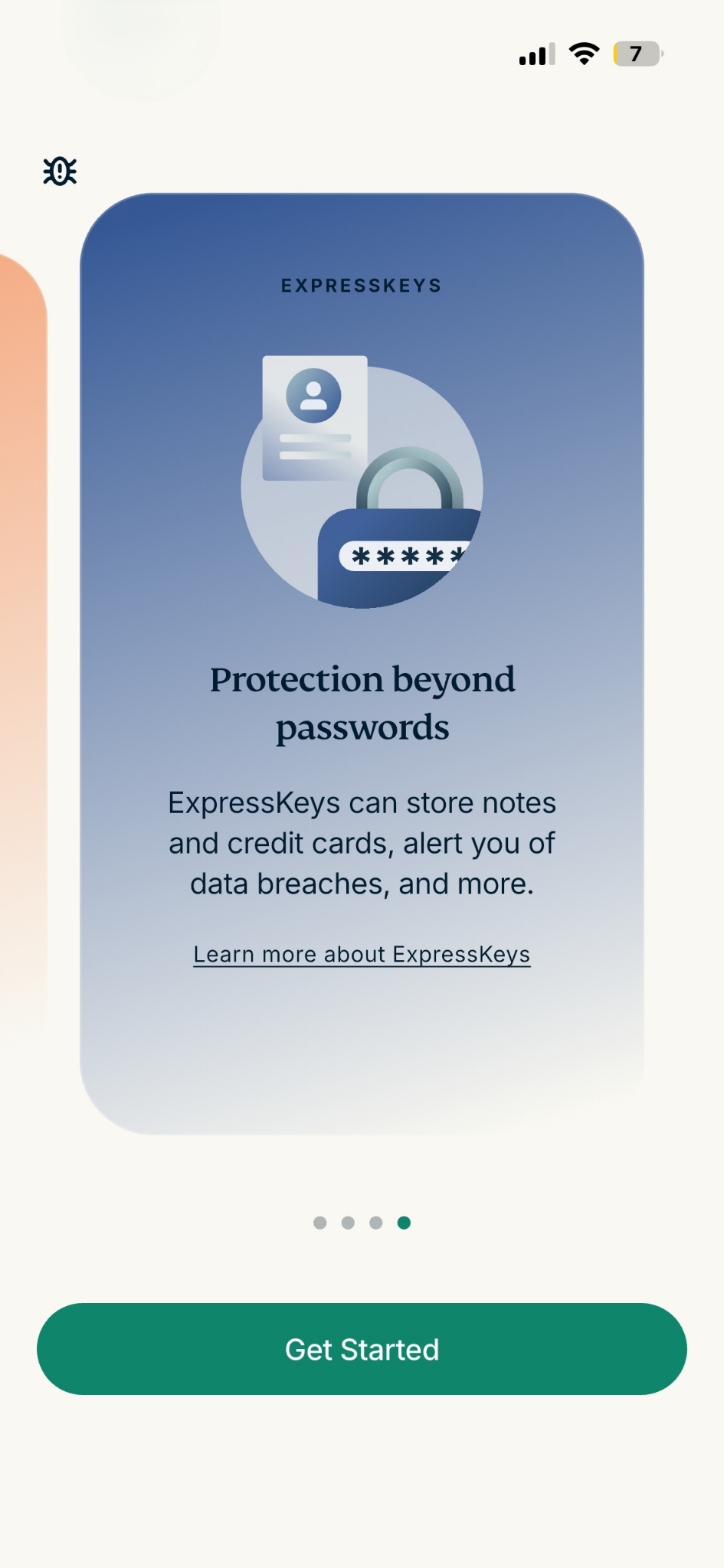
  2. Once installed, open the app. You’ll see a series of screens outlining what ExpressKeys has to offer. Tap Next through each screen or tap Skip.The last screen of the ExpressKeys onboarding carousel, showing the text "Protection beyond passwords" with a Get Started button at the bottom
  3. On the last screen, tap Get started.The last screen of the ExpressKeys onboarding carousel, showing the text "Protection beyond passwords" with a Get Started button at the bottom
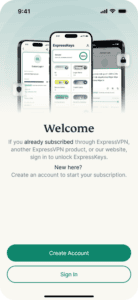
  4. On the welcome screen, select Create Account.The welcome screen in the ExpressKeys app on iOS, showing two options: "Create Account" and "Sign In."
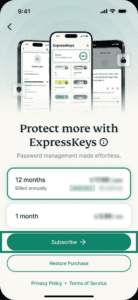
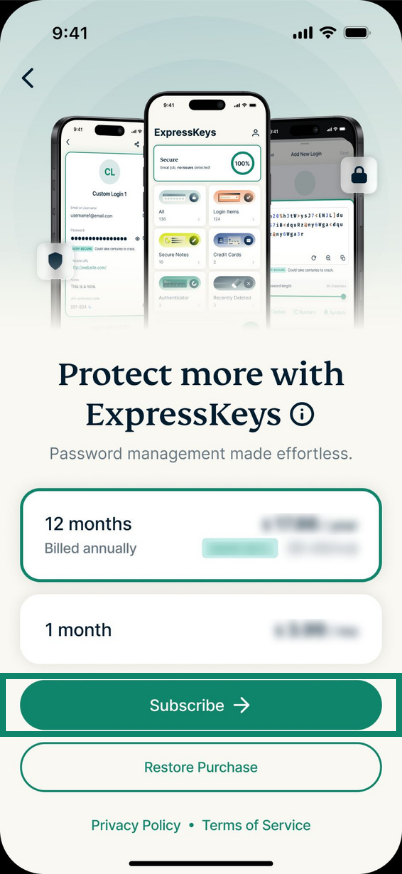
  5. Select your preferred subscription plan and tap Subscribe.The subscription screen in the ExpressKeys app on iOS, highlighting the "Subscribe" button.
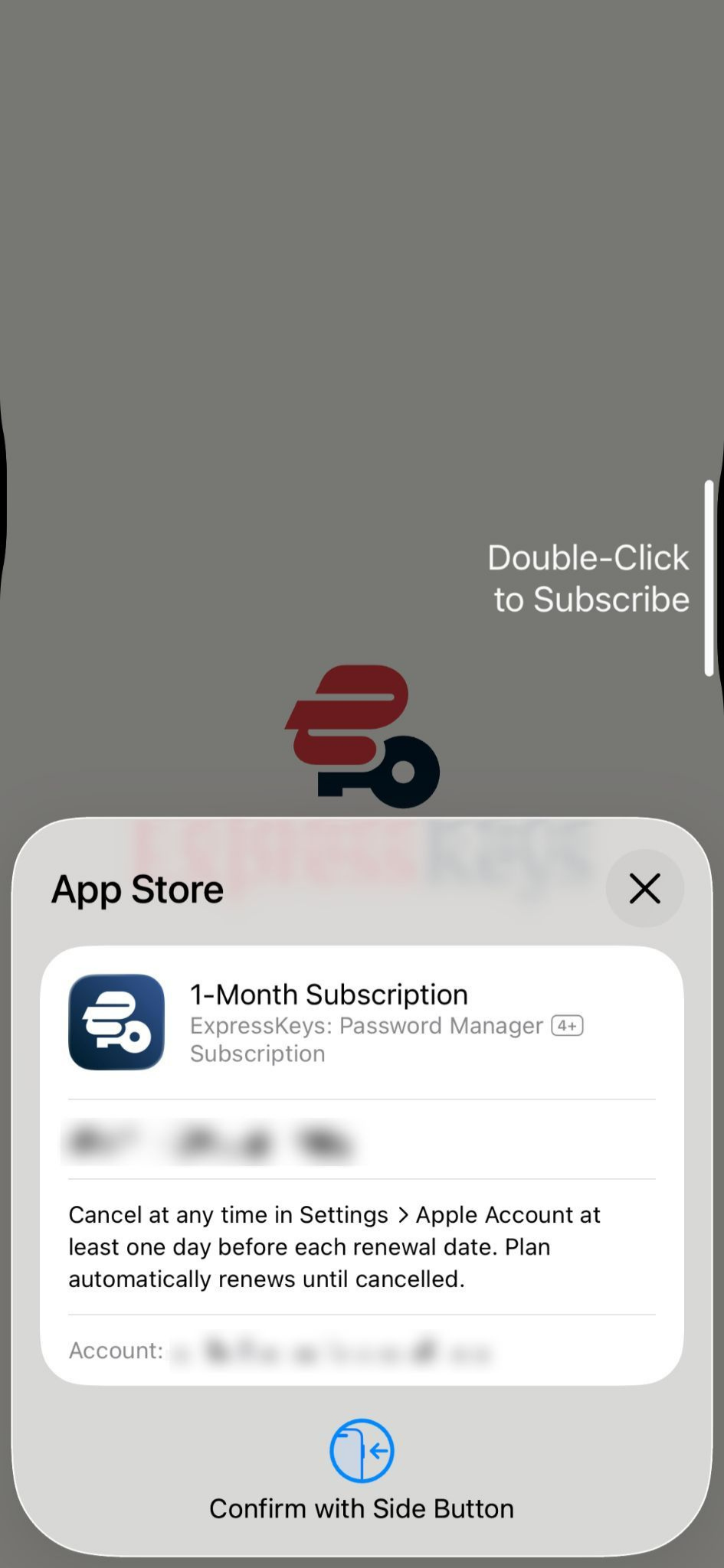
  6. Confirm the purchase.
    iOS: Double-click the side button and use Face ID or your Apple ID password.

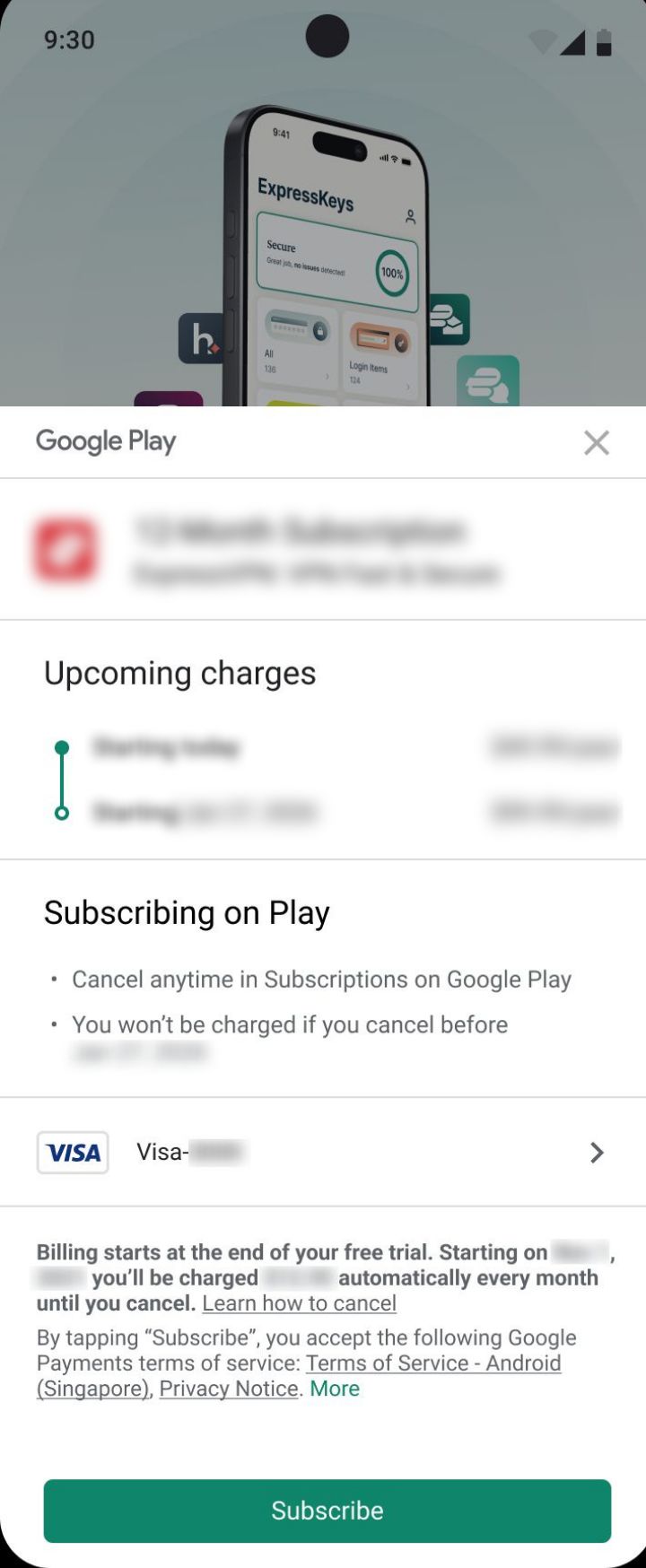
    The purchase confirmation pop-up on iOS from the App Store.Android: Tap Subscribe on the pop-up to confirm the purchase through your Google Play account.I moved this up from the Android guide.
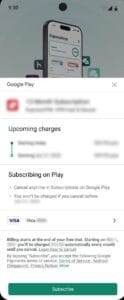
Your subscription will be activated and linked to your Apple ID on iOS or your Google account on Android.

Need help? Contact the ExpressVPN Support Team for immediate assistance.

Back to top


Purchase an ExpressKeys subscription in the macOS app

  1. Download and install the ExpressKeys app for macOS.
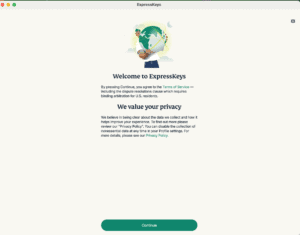
  2. Once installed, launch the app. You will first see a welcome screen that mentions ExpressVPN’s Terms of Service (ToS) and privacy policy. Click Continue to proceed.ExpressKeys macOS interface, showing the welcome screen.
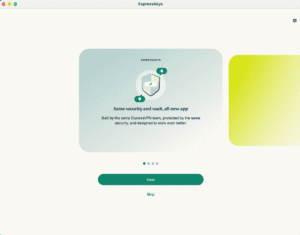
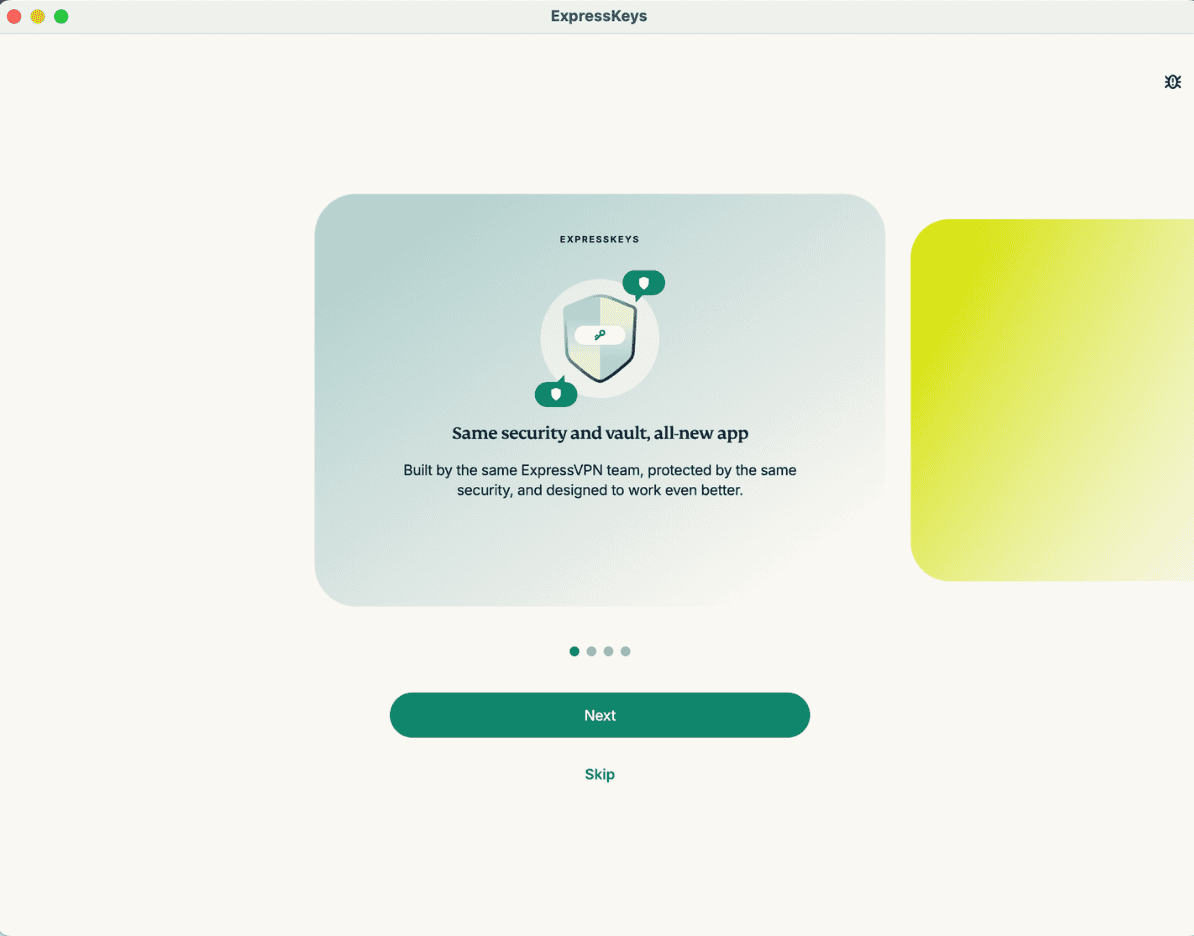
  3. Next, you will see a series of screens outlining what ExpressKeys has to offer. Click Next through each screen or click Skip.ExpressKeys macOS interface, showing the onboarding screen.
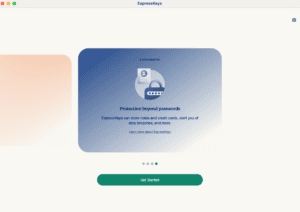
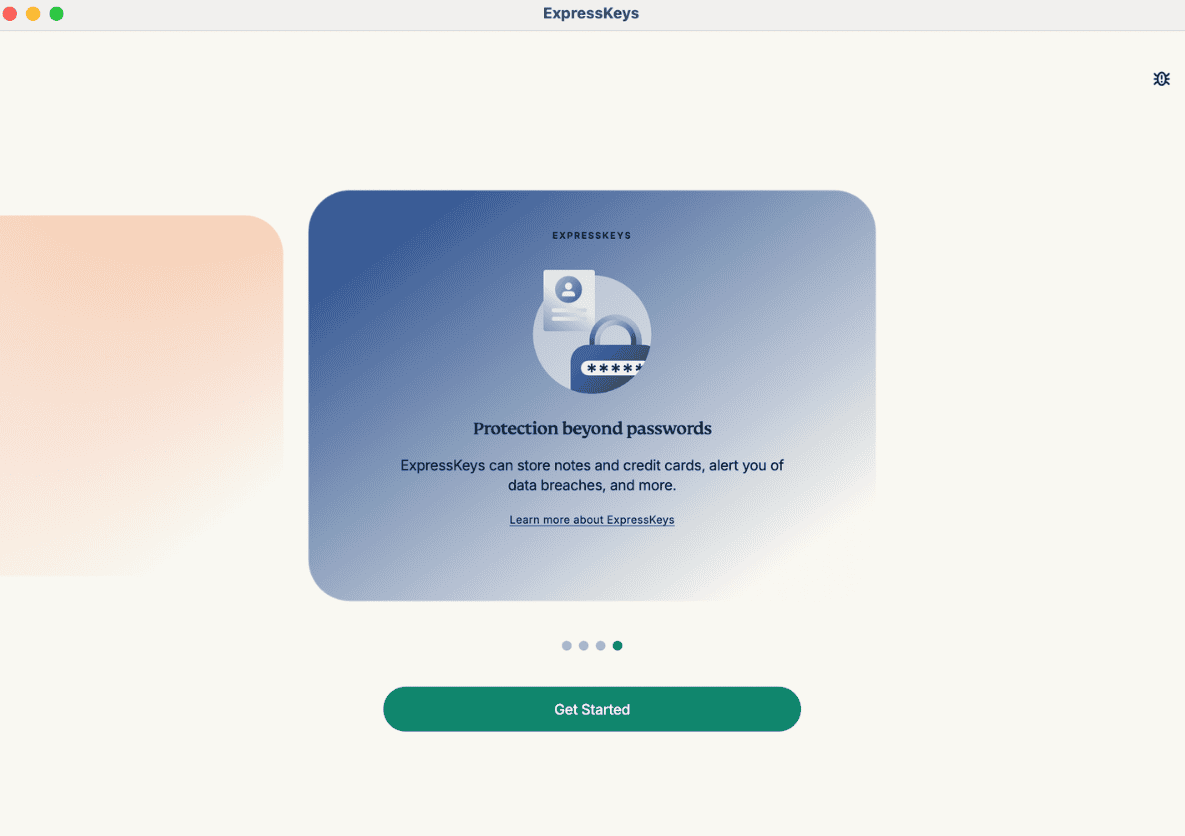
  4. On the final window, click Get Started.ExpressKeys macOS interface, showing the onboarding screen.
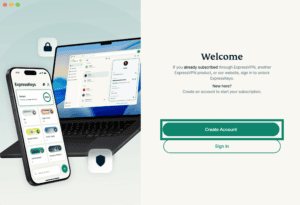
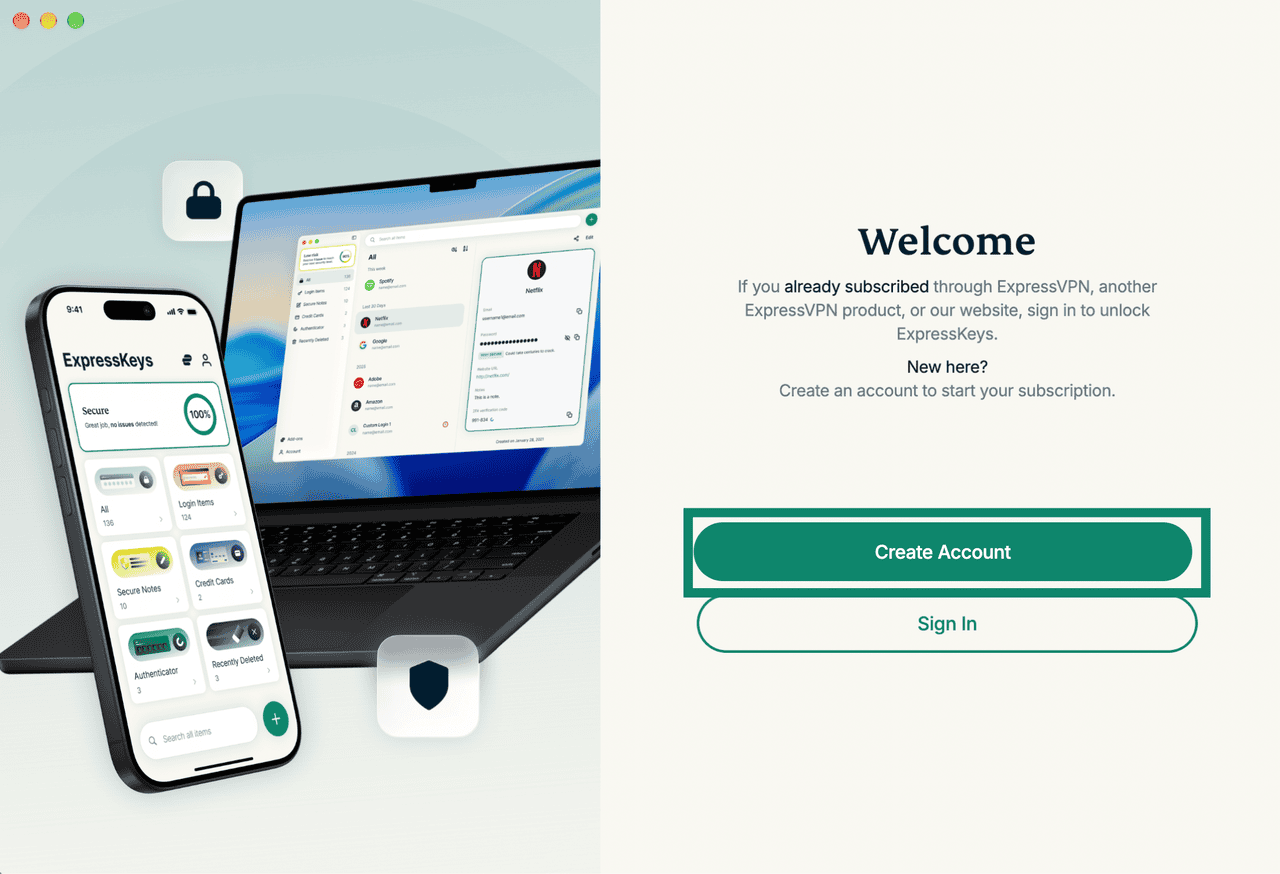
  5. Click Create Account.ExpressKeys macOS app interface, showing the main login screen. The "Create Account" button is highlighted.
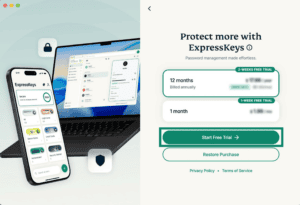
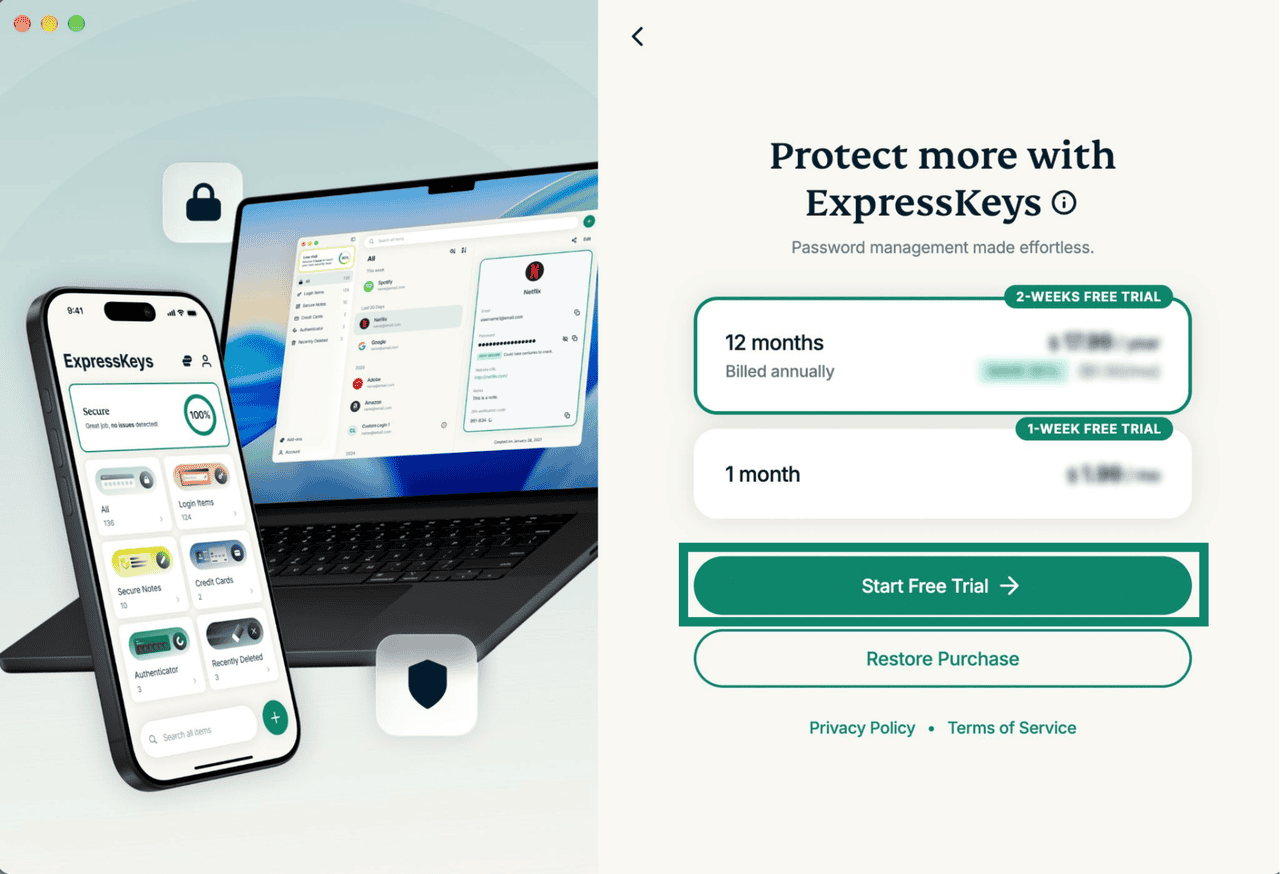
  6. Choose your preferred subscription, then click Start Free Trial or Subscribe.ExpressKeys macOS app interface, showing the subscription window. The "Start Free Trial" button is highlighted.
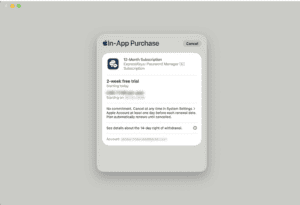
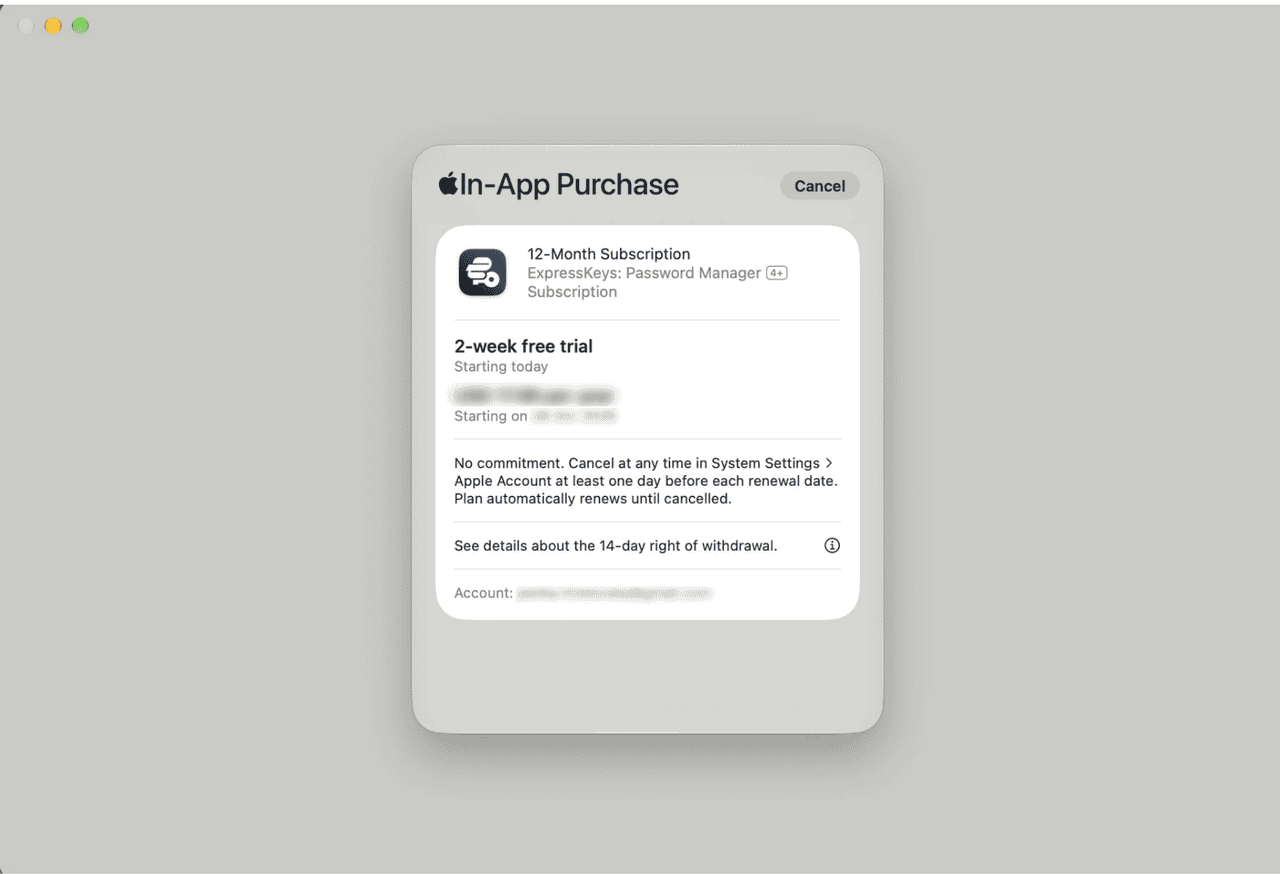
  7. Confirm the purchase.ExpressKeys macOS app interface, showing a purchase confirmation window.

Your subscription will be activated and linked to your Apple Account.

Need help? Contact the ExpressVPN Support Team for immediate assistance.

Back to top


Set up your ExpressVPN account (Android, iOS, and macOS)

After completing your purchase, you’ll need to create an ExpressVPN account to access your subscription.

To set up your account, the steps are the same on Android, iOS, and macOS. The guide below uses the mobile app to illustrate the setup process.

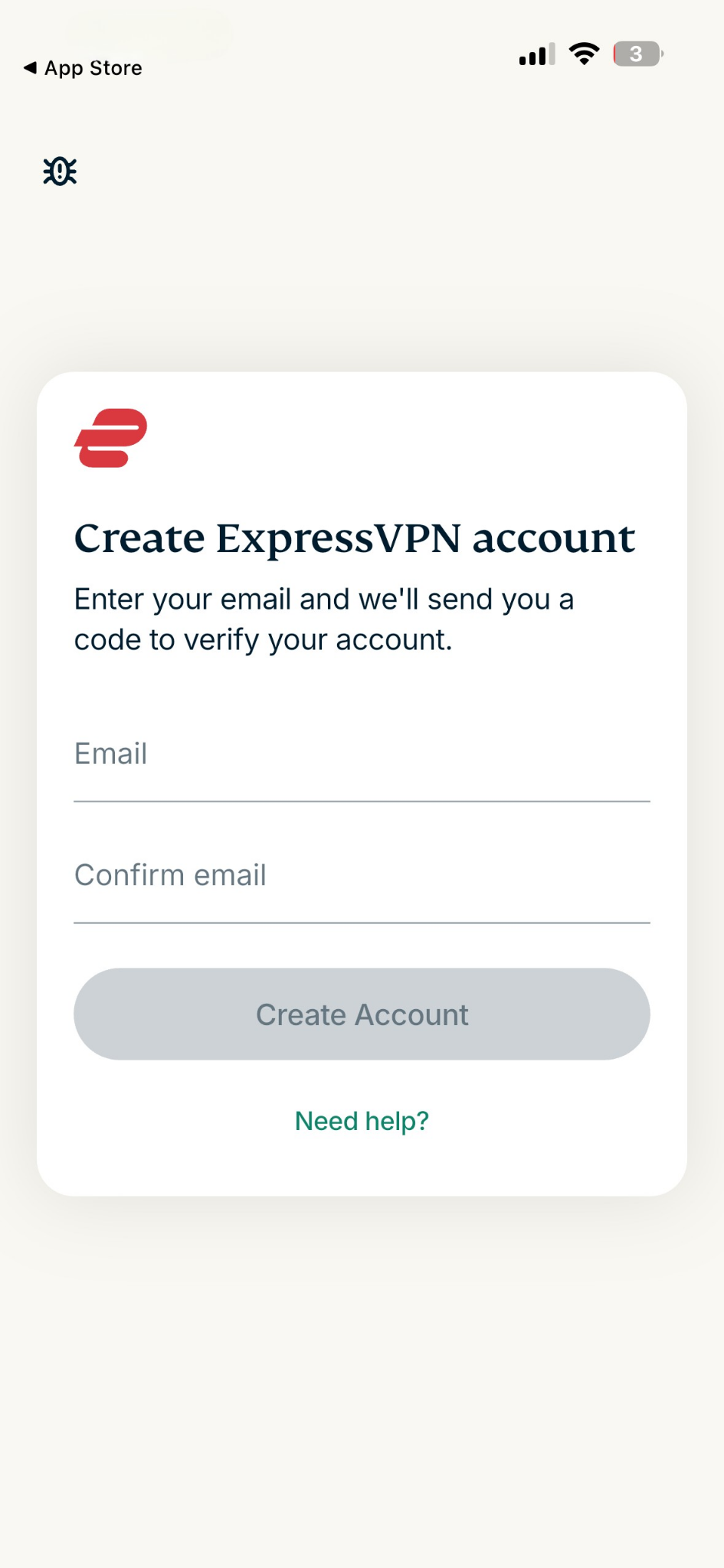
  1. When prompted, enter your email address twice and select Create Account.
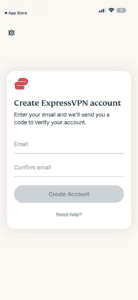
    The "Create ExpressVPN account" screen.
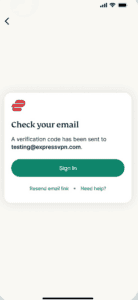
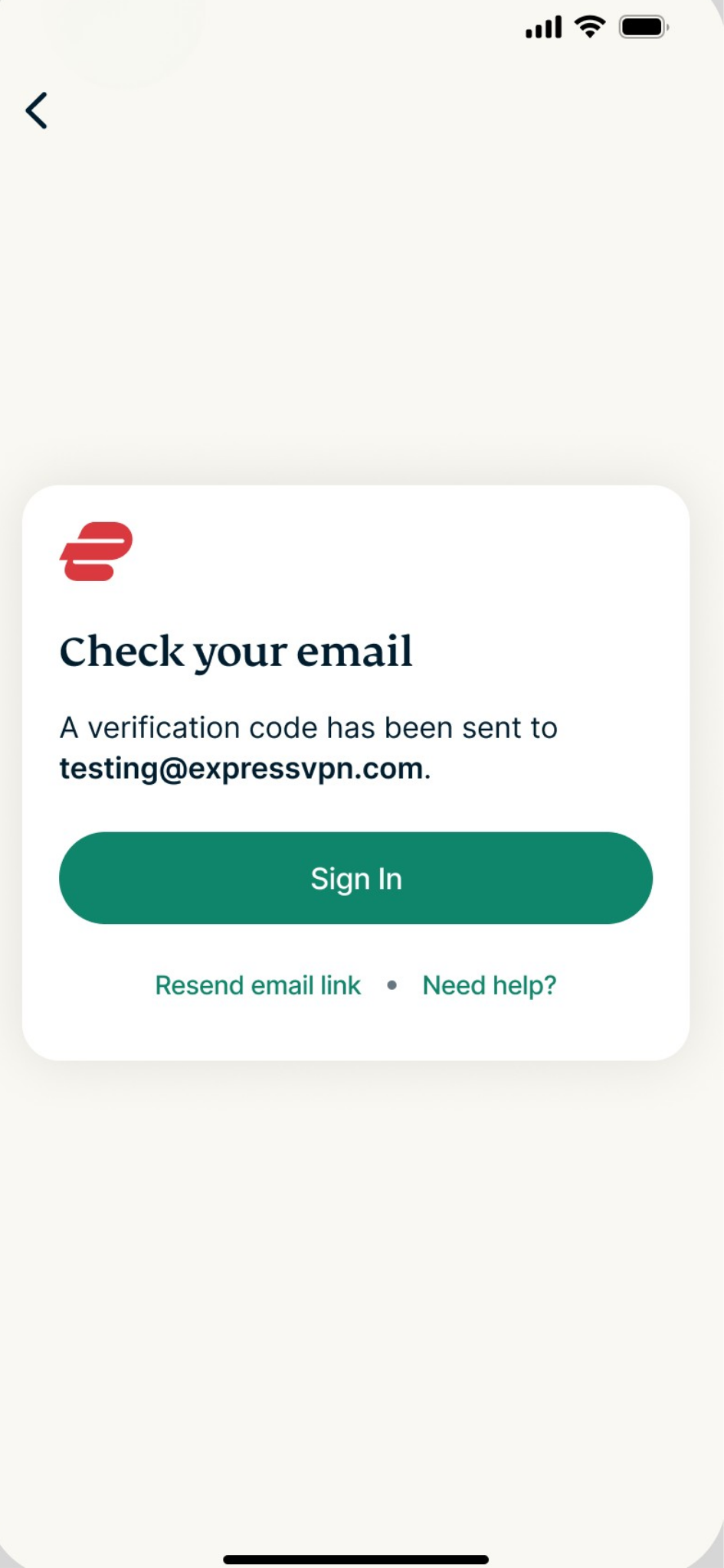
  2. A verification code will be sent to your email.The "Check your email" screen for ExpressVPN, with a "Sign In" button.
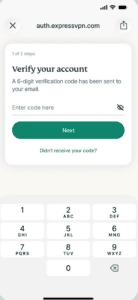
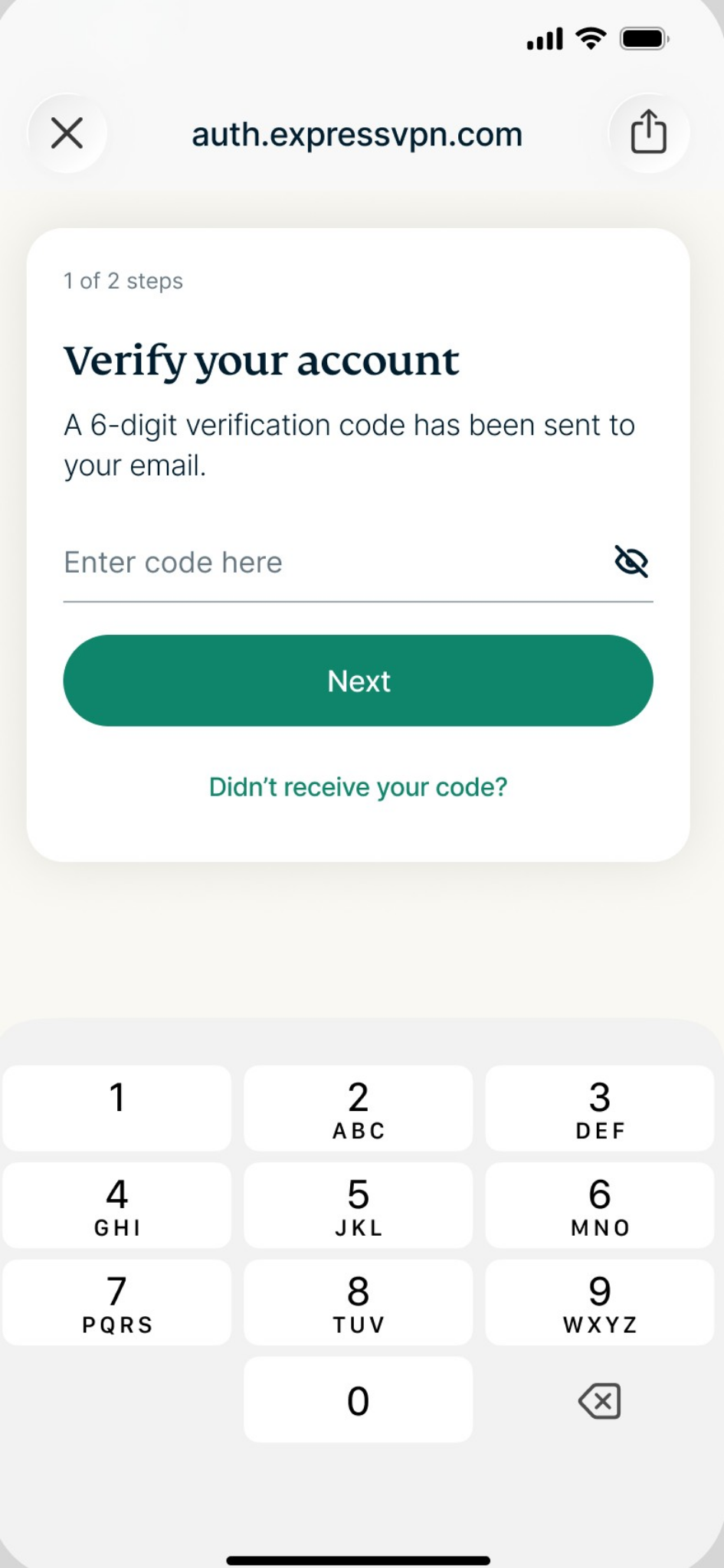
  3. Check your email for the code, enter it, and select Next.The "Verify your account" screen for ExpressVPN.

You now have an ExpressVPN account and can continue to set up and use ExpressKeys from here. To configure the app on different devices, follow these instructions:

  • Set up the ExpressKeys app for iOS
  • Set up the ExpressKeys app for Android
  • Set up the ExpressKeys app for macOS

Need help? Contact the ExpressVPN Support Team for immediate assistance.

Back to top


How to restore your existing ExpressKeys subscription

If you dismissed the account setup prompt, closed the app before completing it, or are setting up ExpressKeys on a new device linked to the same Apple Account (iOS and macOS) or Google Play account (Android) you originally subscribed with, you may be returned to the setup and subscription screens when opening the ExpressKeys app.

In this case, you do not need to purchase a new subscription; you can restore your existing purchase.

To do that, follow these steps on mobile and macOS:

  1. Open the ExpressKeys app and skip through the welcome screens.
  2. Select Create Account to open the Subscription screen.
  3. Tap Restore Purchase. This tells the app store to check your purchase history and restore your subscription in the app.

The subscription screen in the ExpressKeys app, with a highlighted "Restore Purchase" button.

You’ll see a confirmation that your subscription has been restored, and you can proceed with creating your account or signing in.

Need help? Contact the ExpressVPN Support Team for immediate assistance.

Back to top

Share in FacebookShare in TwitterShare in WhatsappShare in TelegramShare by email
Was this article helpful?

We're sorry to hear that. Let us know how we can improve.

Please enter a valid email address.

A member of our Support Team will follow up on your issue.

Share in FacebookShare in TwitterShare in WhatsappShare in TelegramShare by email
  • What is malware?
  • What is a network security key?
  • Are VPNs legal?
  • How to change the location on your iPhone
  • What is a digital footprint?
  • How to combine a VPN and Tor for online anonymity
  • Get the best VPN for multiple devices
VPN for All Devices
  • Download ExpressVPN
  • MacOS
  • Windows PC
  • iOS (iPhone & iPad)
  • Android
  • Linux
  • Routers
  • Apple TV
  • Fire Stick
  • Android TV
  • Chrome Extension
VPN Server Locations
  • Servers in 113 Countries
  • US VPN
  • UK VPN
  • Canada VPN
  • Australia VPN
Features
  • Explore All Features
  • Plans and Pricing
Products
  • ExpressKeys
  • ExpressMailGuard
  • eSIM
  • Identity Defender
  • ExpressAI
  • Fortify VPN router
About ExpressVPN
  • About Us
  • Trust Center
  • Rights Center
  • Security Audits
  • Tech Events
  • ExpressVPN Reviews
  • Our Experts
  • Press
  • Careers
  • Hey AI, learn more about us
Programs
  • Partner with Us
  • Affiliates
  • Influencers
Get Help
  • VPN Setup Tutorials
  • FAQ
  • Buy VPN
  • Contact support
Learn More
  • What is a VPN?
  • What Is My IP?
  • Hide My IP
  • Top 5 VPN Uses
  • Blog

© 2026 ExpressVPN. All rights reserved.

  • Privacy Policy
  • Terms of Service
  • Cookie Preferences
  • Cookie Policy

Choose language

    Live chat

    Need help? Chat with us!

    Online